Parents rarely see the exact screens their children stare at during searches or app sessions. A stranger's message, a violent clip or a birthday address posted in a public thread can slip past unnoticed.
Many families already set house rules but the real dangers stay camouflaged. Filters block some sites but new links, private chats and pop up portals appear faster than blacklists update. A child clicks once and a rule becomes useless.
This guide shares 15 practical internet safety tips for kids to help you close those gaps. They cover locked devices, tight privacy settings plus habits that reveal tricks before a child acts. Each step lets you watch more of the feed and stop the exchange of data, images or words you never wanted shared.
Securing devices is the first step in keeping children safe online. Managing app usage, purchases, and key device settings helps reduce risks like excessive screen time, malware exposure, and access to inappropriate content.
Controlling app usage is critical to protect children from overexposure and unsafe content. Many parents rely on tools like Screen Time (iOS), Google Family Link (Android), or AnySecura to monitor habits and enforce limits. Start by observing a week of usage before implementing stricter rules so children can adjust more easily.
To set up on iOS, Android:
Reviewing weekly reports helps spot overused apps while avoiding overly strict rules that may lead to bypassing.
Related article: [2026] How to Block Inappropriate Websites on Your Child’s Phone
Studies show that around 30% of children aged 8–12 have accidentally made in-app purchases, sometimes costing parents up to $50 each. Regularly reviewing app permissions is essential, as updates can reset restrictions. Also, even free apps can collect personal data or contain inappropriate content. Limiting in-app purchases protects both your child and your finances.
How to set up on iOS or Android:
Safe browsing aims to protect users from stumbling upon content meant for adults, hostile software and deceptive advertisements. A reliable approach unites technical tools with adult oversight. One effective way to block inappropriate content for kids is enable SafeSearch in Chrome, Safari, or YouTube and install ad-blockers like AdGuard or uBlock Origin. For younger children, consider child-friendly search engines like Kiddle or Safe Browser. Encourage children to ask questions before searching unfamiliar topics, because filters do not cover every risky situation.
With AnySecura , you can reinforce safe browsing by blocking inappropriate websites, monitoring online activity, and receiving alerts when risky content is detected—adding an extra layer of protection beyond basic filters.
You may interest in: [2026] How to Block Inappropriate Websites on Your Child’s Phone
Threats in the form of malicious software or hijacked applications activate a laptop or tablet camera while the child remains unaware. Once a camera is activated, someone can watch the room, record videos, and capture private details. A plain plastic slider that sticks over the lens plus current software set to strict privacy levels lowers the chance of such spying and defends the youngster's digital life.
How to protect cameras:
Setting up controls on each device individually can be time-consuming, and it’s easy to miss certain apps, browsers, or loopholes. As children switch between phones, tablets, and computers, maintaining consistent protection becomes even more challenging.
This is where tools like AnySecura can help. It helps parents stay informed about their child’s online activity, receive alerts when something may be wrong, and manage device usage with flexible, easy-to-use controls.
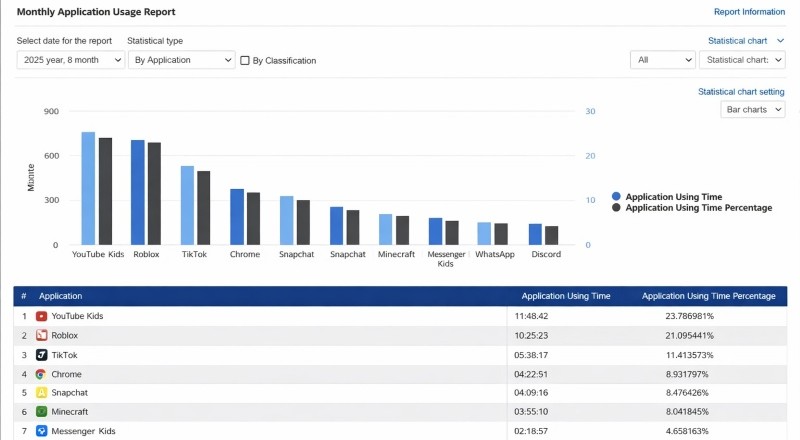
With AnySecura, you can:
Parents who adjust privacy settings inside social applications block unknown adults from sending friend invitations or pinpointing the child's exact position. The same settings stop the youngster from posting birth dates, school names, phone numbers or home addresses - the record of the child's behaviour stays smaller and becomes less useful to marketers, harassers or any other unwelcome viewer.
Pictures shot by a child usually store EXIF tags - those tags list the precise place where the camera stood. From one picture, a viewer learns the child's school gate, the bus stop or the regular afternoon walk. If an unknown person copies the file, the stranger also copies the map coordinates. After that, the adult knows where to wait, which door to watch and when the child is alone.
To stop the camera from saving the coordinates, open the device settings, choose the camera panel and switch the location slider to off. For pictures already taken, open an editor like Metapho or ViewExif. Each of those programs shows every stored tag and offers a delete command. When the child wants to share a picture on a public site, teach them to send a screenshot of the photo instead of the original file. A screenshot contains pixels only, with no hidden tags.
How to remove metadata from photos on iOS
How to remove metadata from photos on Android
Many popular apps make it easy for children to connect with others through features like “People You May Know,” suggested friends, username search, or open group invitations. While these tools are designed to help users expand their networks, they can also allow strangers to reach your child with little friction.
Parents need to look through the list of names in the child's phone or tablet on a regular schedule. Sit down with the child and talk quietly about each person who sends messages or shares games on the internet. Ask the child to confirm that every name belongs to someone already seen in real life. When a group chat, server or forum includes people the child has never met, the child must stop and request permission from a reliable grown up before entering the discussion.
For more comprehensive protection, consider using parental control software that actively monitors digital interactions.
With AnySecura , you can monitor your child’s digital interactions, receive alerts about risky conversations, and stay informed without constantly checking their device. It’s a practical way to bridge the gap between basic privacy settings and real-world online risks.
Limiting post visibility can significantly reduce exposure to scams and unwanted contact. Reduce the duration posts remain visible to prevent tracking and profiling. Temporary sharing allows children to interact socially while protecting their privacy. Discuss oversharing examples and encourage children to check who can see their posts.
A family code word is a simple but effective way to protect children from impersonation scams, including AI-generated voices or fake messages. In these situations, someone may pretend to be a parent, relative, or trusted adult and ask the child to share personal information, send money, or meet in person.
By creating a private code word, children can verify if a request is real. Teach them to ask for the code word whenever something feels unusual or urgent.
Pick a word the child will recall but outsiders will not expect and change it from time to time so it stays safe.
Prevent unintended charges entirely by blocking in-app purchases.
How to disable in-app purchases:
Tip: Ideal for younger children or apps with frequent microtransactions, like games or AI drawing apps. It prevents accidental or impulsive charges.
Two-Factor Authentication (2FA) supplies an additional safeguard for user accounts on email services, gaming networks and educational portals. A password alone proves insufficient - an intruder who obtains the password must still complete a second check, for instance - typing a numeric code delivered to a mobile device or produced by a dedicated application, before entry is granted.
To set up 2FA:
Enable 2FA first on essential accounts like email, then gradually expand to other apps. Let your child know it’s there to keep their information safe, not to make things more complicated.
Passwords should be strong, memorable, and updated regularly. Encourage children to combine phrases, numbers, and symbols, such as ILovePizza2026!. Older children can use password managers like LastPass or 1Password.
Children often pick the same password for multiple sites, select weak ones or hand a password to someone without grasping the danger. If two factor authentication is active, one error seldom hands the whole account to an intruder.
Setting device curfews prevents exposure to cyberbullying and adult content while supporting healthy sleep habits. Combine off hours with features like Do Not Disturb or night mode.
With AnySecura, you can schedule device downtime, enforce bedtime rules, and automatically restrict access to apps or websites during off hours—making it easier to maintain consistent boundaries without daily reminders.
Children open up about online dangers more readily when they sense that parents react with steady calm and skip instant penalties. When the child expects trouble, the same child tends to conceal the problem.
Create a safe space by regularly checking in and talking about online experiences in a relaxed, non-judgmental way. You can also discuss simple “what would you do if…” scenarios to help them think through possible situations in advance.
Reassure your child that asking for help is always the right choice, and that their safety matters more than any mistake they might make.
Children today should learn to recognize AI-generated or manipulated content, as fake images, videos, and voices are becoming increasingly realistic and harder to identify. You can make this engaging by playing simple “spot the difference” games with unusual images, checking information together from trusted sources, and practicing how to notice small inconsistencies.
Tools: Deepware Scanner and Sensity AI can help identify manipulated media and give children a better understanding of how deepfakes work.
Regularly reviewing apps, permissions, and updates not only keeps devices secure, but also helps children develop a sense of responsibility for their digital habits. Setting occasional reminders can help ensure these checkups don’t get overlooked.
The greatest danger is that they see harmful material or speak with people they do not know. Such contact appears inside social networks, inside games and even inside lists returned by search engines. When adults show children how to spot danger and when the home network contains strong filters, the chance of harm drops.
Begin the lessons as soon as the child touches a phone, tablet or computer. A young child is able to remember two rules - do not chat with strangers through the screen and always ask a parent before an app is installed or before any personal detail is sent.
Focus on building trust first, and use monitoring tools as support rather than control. State clearly why oversight is needed and keep the conversation open every day.
Use those tactics and the chance of harm drops while your youngster learns steady, sensible online behaviour.
At the same time, having the right tools can make a significant difference. Instead of managing multiple settings across devices, a comprehensive solution can help you stay informed and maintain consistent protection more easily.
With AnySecura, you can monitor activity, block inappropriate content, set screen time limits, and receive alerts about potential risks—all in one place.
👉 Download AnySecura now to create a safer and more controlled online environment for your child.