Parents have good reasons to be concerned about inappropriate websites on their children’s phones. A phone can access the open internet through a web browser, a search engine, in-app browsers within social media, and various types of networks. No single switch can block every pathway, and if harmful content reaches your child, it could confuse, frighten, or disturb them.
In this article, you’ll discover five easy-to-use methods to block inappropriate websites on phone, providing effective protection while making it difficult for children to bypass, and helping to ensure a safer online environment for your kids.
Bypass difficulty: ⭐⭐⭐☆☆
Setup time: 5–10 minutes
Difficulty: ⭐⭐☆☆☆
Both Android and iPhone include built-in parental controls that can restrict adult content without installing anything.
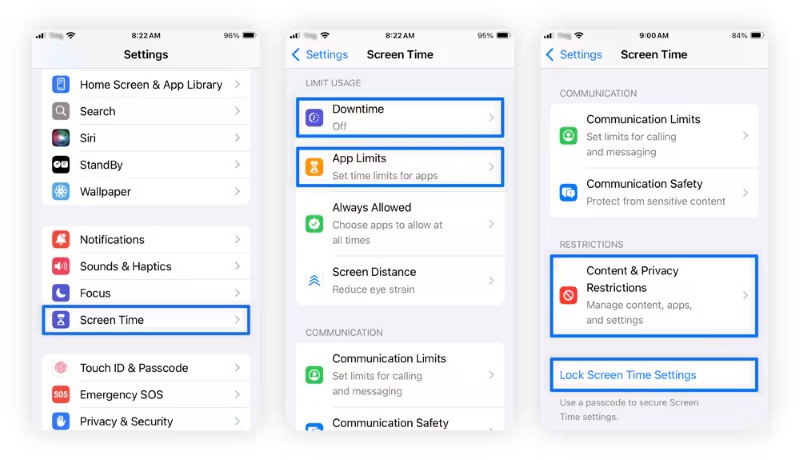
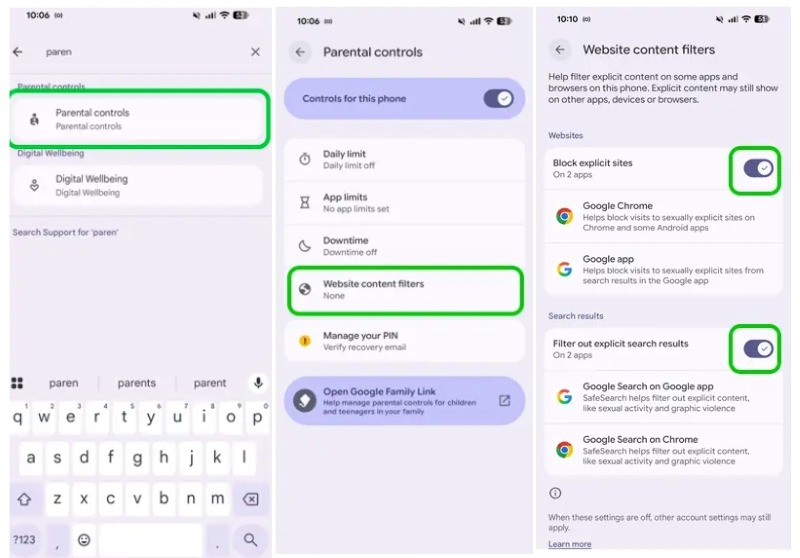
💡Extra Tips to do this well
This method is best for parents who want a quick and free solution. It works well for younger children or as a first layer of protection.
The main advantage is simplicity. These controls are integrated into the system and don’t require technical setup. However, they can be bypassed if a child resets the device or guesses the passcode. This is where mature parental control apps like AnySecura bridge the gap. They often provide cross-platform compatibility and stronger, more comprehensive controls.
Bypass difficulty: ⭐⭐⭐⭐☆
Setup time: 10–20 minutes
Difficulty: ⭐⭐⭐☆☆
App-based parental controls offer a more advanced and flexible way to block inappropriate websites and manage a child’s online activity.
Platforms like the Google Play Store, App Store, and Huawei AppGallery provide a wide range of parental control tools designed to go beyond basic filtering. These apps can:
Compared to built-in Android or iOS settings, these tools provide deeper control and better visibility, especially as children begin using more apps and devices.
This method is ideal for parents who want ongoing insight into their child’s behavior rather than just basic restrictions. It’s particularly useful for older children who are more likely to explore different apps, browsers, or workarounds.
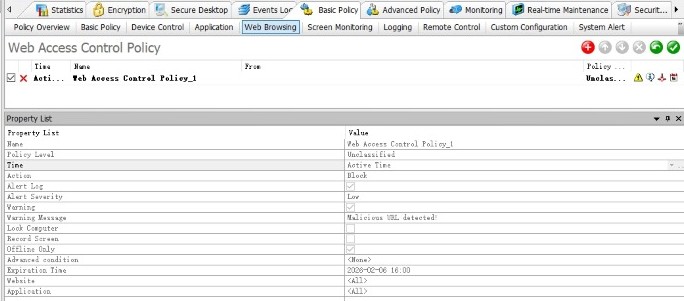
AnySecura is a powerful, cross-platform tool that keeps children and teens safe online. It runs smoothly on smartphones, Windows PCs, and Macs, allowing you to block websites by category or specific URLs. With advanced monitoring and instant alerts for risky behavior, AnySecura makes online safety simple and effective.
Here’s what makes it a top choice for online safety:
Bypass difficulty: ⭐⭐⭐⭐☆
Setup time: 3–5 minutes
Difficulty: ⭐☆☆☆☆
SafeSearch is Google’s built-in content filter. When it’s on, explicit images, videos, and websites are filtered out of Google Search results — so searches for inappropriate topics return clean results rather than adult content. It’s the fastest method to set up and works without any downloads, but it only applies to Google searches made through the Google app or Chrome. It won’t block a specific URL someone types directly into the address bar.
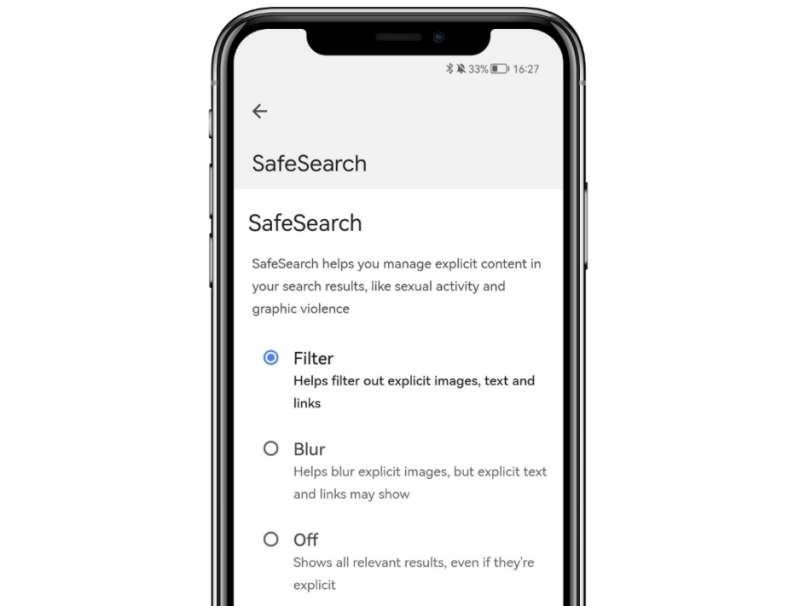
💡If you use Family Link to set up supervision, SafeSearch filtering is turned on and locked by default for your child's account; children cannot change SafeSearch settings.
If Screen Time content restrictions are enabled (as shown in Method 1), Safari will already filter adult websites automatically.
Bypass difficulty: ⭐⭐⭐⭐☆ (unless a VPN is used)
Setup time: 10–15 minutes
Difficulty: ⭐⭐⭐☆☆
DNS filtering is one of the few methods that can block inappropriate websites across browsers and apps without installing additional software.
Android supports “Private DNS,” which applies system-wide filtering.
This setup generally works across both Wi-Fi and cellular networks, although it may not apply when a VPN or restricted network is in use.
iOS does not offer a simple system-wide DNS setting like Android.
You can use services like CleanBrowsing or OpenDNS by configuring DNS manually or installing a profile.
This approach is ideal for parents who want broader protection across all apps.
The main advantage is coverage. It works silently in the background and filters traffic across the entire device. The downside is that setup can feel slightly technical.
💡Important Limitations
Despite these limitations, DNS filtering is often overlooked but is one of the most effective ways to block inappropriate websites consistently.
Bypass difficulty: ⭐⭐⭐☆☆
Setup time: 15–25 minutes
Difficulty: ⭐⭐⭐⭐☆
Most modern routers offer built-in parental controls that allow you to block inappropriate websites across all devices connected to your home Wi-Fi.
Advanced routers may support:
192.168.1.1 or 192.168.0.1Its biggest advantage is scale. You only need to configure it once, and it applies to every device on the network. However, it won’t work when the phone switches to mobile data.
This method works equally on Android and iPhone since it operates at the network level.
A common mistake is forgetting to restrict mobile data. Without additional controls, children can bypass restrictions by leaving Wi-Fi.
Not all children need the same level of restriction. The right setup depends on age, maturity, and online habits.
For ages 5–8, strong restrictions are recommended. Use built-in controls combined with DNS filtering to block most content automatically.
For ages 9–12, a mix of blocking and monitoring works better. Children start exploring more, so visibility becomes important.
For teenagers, strict blocking is often less effective. Monitoring and open communication tend to work better than heavy restrictions.
| Age Group | Risk Level | Recommended Setup | Tools |
|---|---|---|---|
| 5–8 | High | Strict blocking | OS controls + DNS |
| 9–12 | Medium | Block + monitor | AnySecura + DNS |
| Teens | Variable | Monitor-focused | AnySecura |
Yes. You can block specific domains using Screen Time on iPhone, parental control apps, or router settings. DNS services also allow domain-level blocking.
Yes, especially if only one method is used. Common bypass methods include VPNs, alternate browsers, or resetting the device. This is why layered protection is important.
Yes. DNS filtering is widely used and considered safe. It blocks harmful domains before they load and does not interfere with normal device usage.
Blocking inappropriate websites on your child’s phone doesn’t require a single perfect tool. Each method—built-in controls, apps, browser settings, DNS filtering, and router controls—solves a different part of the problem.
The most reliable approach is combining these methods into a layered system. Start with simple controls, then add stronger protection as needed. For comprehensive coverage, consider AnySecura, which blocks inappropriate websites across all devices and apps, monitors activity, and alerts you to risky behavior—giving parents peace of mind and children a safer online experience.