In this article, we will have a brief introduction of SurveilStar Console. SurveilStar Console is very easy-to-use yet powerful employee management controller, provides powerful search functions as well.
SurveilStar Console is very intuitive and easy-to-use, yet powerful and customizable. It also comes with powerful search functions. As to SurveilStar Console's interface, please refer to the picture below.
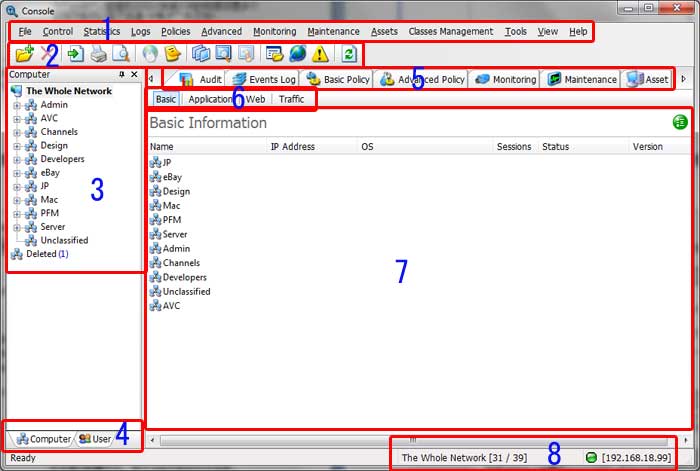
(1) Menu: Entries to all SurveilStar Console's functions.
(2) Tool Bar: Entries to the most widely used functions in SurveilStar Console.
(3) Computer List: On the left of the Console window, it will show you all the computers with agent installed as well as basic group information.
(4) Computer/User List: Switch computer list to user list or vice versa. User list will show you all the logged-in users as well as user group information.
(5) Main Menu Navigator: Under the tool bar. You can navigate to some main functions quickly.
(6) Subordinate Menu Navigator: Under Main Menu Navigator. You can navigate to specific functions quickly.
(7) Data Display: The most important part. All kinds of data will be displayed in this area.
(8) Whole Network: Information about total online users and server IP address.
Some of the functions also provides chart, search and property functions and user interface will be a little different. The following example is Application Statistics.
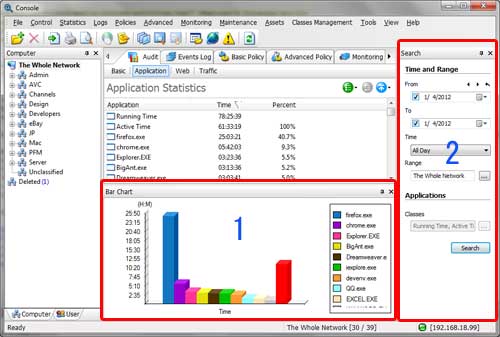
(1) Chart: The chart is only available in Statistics.
(2) Search: The search functions is available in Statistics, Logs, Instant Messages, Emails, etc. You may specify computer, user, time range, classes, etc. to search. Depending on different functions, you can use different search inquires.
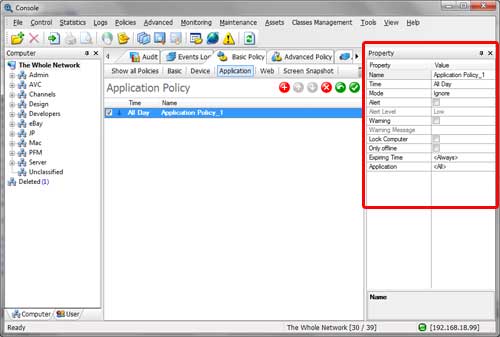
(3) Property: Property is only available in Policies and Advance Policies. In property area, you can set detailed controlling policy according to your need. Different policies have different options. Below is an example of Application Policy.
| Log on SurveilStar Console | Back to Index | Computer and User |