After installing SurveilStar Server, Agent and Console successfully, you can now log on SurveilStar to view information from monitored computers as well as create policies to control their PC and online activities such as blocking Facebook and YouTube, blocking MSM/Live Messenger, ICQ as well as viewing their real-time screen snapshot.
Click Start > All Programs > SurveilStar > SurveilStar V3 Console to launch SurveilStar console logon dialog. The logon dialog will be shown as below.
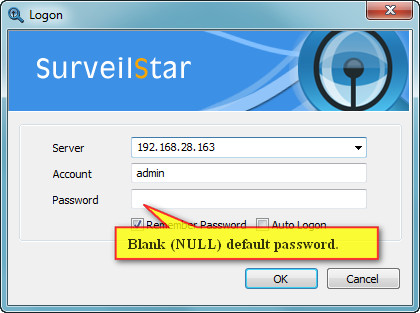
Server: Enter SurveilStar Server's IP address or computer name.
Account: The default administrator account is "admin", and the default auditor account is "audit". IT Manager or supervisor can create multiple accounts and assign different priliveges to meet different requirements. After console logon, you can use menu Tools > Accounts to create accounts.
Password: Enter password of the account you entered. The default password of "admin" and "audit" are null. Simply enter nothing and click OK to log on. Please change the password immediately after you log on SurveilStar Console. Use menu Tools > Change Password to change password. IT manager and supervisor should take care of the password.
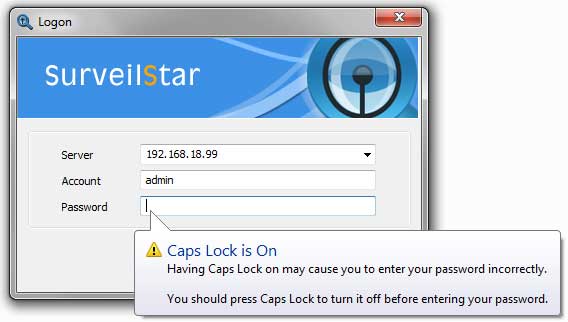
Please note that password is case sensitive. SurveilStar can detect the Caps Lock status and display a message as below.
If you need to re-connect to the server or log on as different account, you can use menu Tools > Re-logon.
| Upgrading SurveilStar to Latest Version | Back to Index | Chief introduction of SurveilStar Console |