Note: If you want to remove the entire SurveilStar PC/Internet monitoring system, including Agents, Consoles and Server, please delete all SurveilStar Agents first. Otherwise, the deployed SurveilStar Agents will continue to run in those computers, even though the SurveilStar Server is removed.
Only IT manager or senior supervisor with administrator access to SurveilStar Console can uninstall SurveilStar Agent.
Login to the SurveilStar Console, right-click on any selected computer, or the entire network, and choose Uninstall Agent from the pop-up menu (as shown bellow).
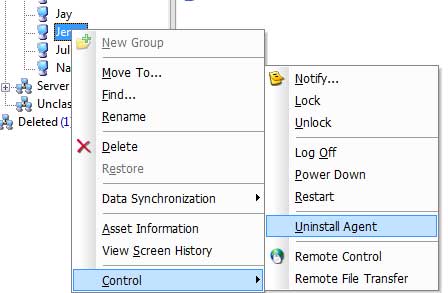
Note: both two ways of uninstalling an Agent do not delete the history data of this computer. The uninstalled Agent will still appear in the Console, marked in dark gray color. To delete an Agent completely, please click the Console menu "Tools > Computers" , select the computer name, and then click the Delete button.
Step 1: On client computer - create Operate Code
(1) In XP, click "Start > Run", type "agt3tool ocularadv" command into the run box. In Vista or Windows 7, you can click Start and type agt3tool ocularadv directly in "Search program and files" box.
(2) Run the command, and you will see the Agent Tool.
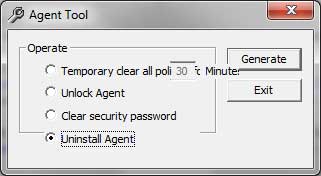
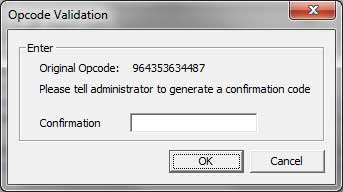
(3) Select Uninstall Agent, and click the Generate button, you will see the Opcode Validation dialog. This code is used to generate a confirm code from the Console (see next step).
Note: DO NOT close this Check Confirm Code form in this step. You need to return to this form later.
Step 2: On SurveilStar Console - create Confirm Code
(1) Go to SurveilStar Console, click the menu "Tools > Agent Tool > Confirm-Code Generator", you will see the Confirm Code Generator, enter the Operate Code attained previous step into the Agent Operate Code text area
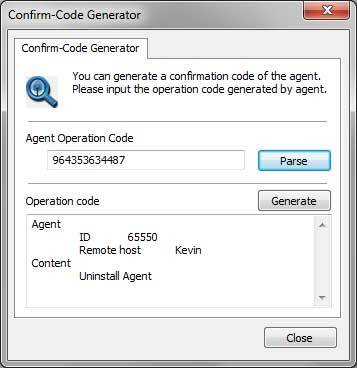
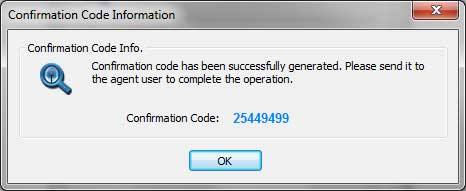
(2) Click the Parse button, and then click the Generate button, you will see the Confirm Code highlighted in blue colour in a result dialog. Write down this code, and go to the last step.
Step 3: Back to client computer - complete the un-installation
Now we are back to the client computer, where the uninstall operation is waiting to be confirmed.
Go to the Check Confirm Code dialog, enter the Confirm Code, and then click the OK button. Done.
On the desktop of Windows system, click " Start > All Programs > SurveilStar > Uninstall SurveilStar" , or go to "Control Panel > Add/Remove Program" to uninstall SurveilStar Server.
If you have installed SurveilStar Console on multiple computers and want to remove all of them, you may need to uninstall the console one by one.
Note: Before uninstalling SurveilStar Server, all SurveilStar Consoles should be closed first.
On the desktop of Windows system, click " Start > All Programs > SurveilStar > Uninstall SurveilStar" , or go to "Control Panel > Add/Remove Program" to uninstall SurveilStar Server.
Uninstalling SurveilStar server doesn't affect Microsoft SQL Server. If you don't need SQL Server any more, you may need to uninstall it manually from Control Panel.
| Installing SurveilStar Agent | Back to Index | Register SurveilStar and Upgrade License |