Working discipline is very important to any companies. However, not everyone in the workplace will fully obey working discipline. SurveilStar can create flexible policies to control and monitor employees' PC and web activities and reduce discipline break maximally. After the policies are applied to the employees' computers, IT manager can easily find out the employees who try to break the policy rules and his intention.
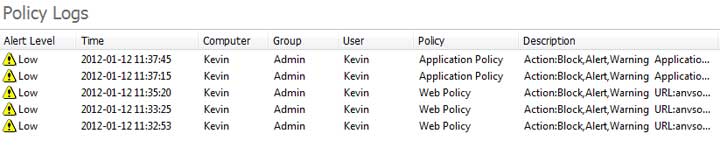
SurveilStar can record Alert Level, Time, Computer, Group, User, Policy Type and description.
Select a computer or a group at first, then specify your search conditions including lowest level, policy type and content.
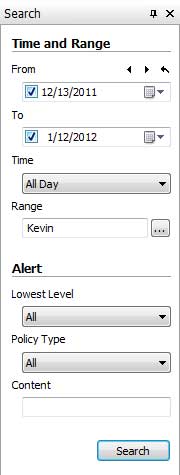
Lowest Level: Alert level can be Low, Important and Critical. Choose the lowest level that you want to record. If Low Level is chosen, then any alert will be recorded, and if Important is chosen, only Important and Critical alert will be recorded.
Policy Type: Select policy type to search. All SurveilStar supported policy types are listed. As to the detailed information of each policy, you may need to refer to policy chapters respectively that will be discussed later.
Content: Search operation behaviors on agent computers and the policy types he tries to break.
After specifying your search conditions, click Search button to view the result. Below is a search result example of policy logs.
Right-click on a policy log and click Property to view the detailed information.
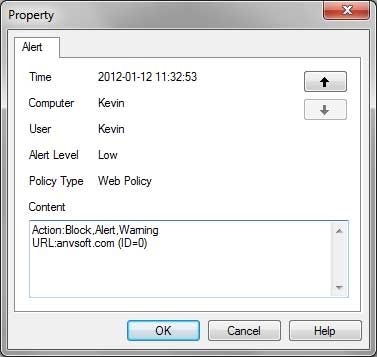
In the example above, we can find out that the website anvsoft.com is blocked and the user Kevin tried to visit this website. Both alert and warning are enabled, alert will pop on SurveilStar Console while warning message will be sent to the user Kevin when he tried to open the blocked website anvsoft.com.
| Asset Change Logs | Back to Index | System Event Logs |