Install SurveilStar Console
Depending on your need, SurveilStar Console can be installed on server computer or any other specific computer in the same local area network. SurveilStar console is used to view the collected data and control monitored computers.How to Install SurveilStar Console
Features
- Take Screen Snapshots
- Email Monitoring
- Instant Message Monitoring
- Website Visit Monitoring
- Application Monitoring
- Document Monitoring
- Printing Monitoring
- Network Monitoring
- Computer Maintenance
- Data & User Management
Resources
- Complete Online Guides
- Video Tutorials
- SurveilStar Testimonials
- Deploying SurveilStar
- SurveilStar Home Edition
- Free Activity Monitor
- Free Email Recording
- SurveilStar Press Release
- Version Comparison
- Feature Module Comparison
- SurveilStar Blog
- 日本語
- français
Topics
SurveilStar console can be installed either on server computer or on any other specific computer in the same local area network. Please note that the administrator can create different accounts for different users and provide different privileges. The default account is Admin and default password is null and we recommend you change Admin password immediately after you log onto SurveilStar Console.
System Requirements for SurveilStar Console
- OS: Win2000 SP4, XP(X86/X64), 2003(X86/X64), Vista(X86/X64), 2008(X86/X64), Win7(X86/X64)
- Available Hard Disk Space: 256 MB, 1 GB recommended
- RAM: At least 256 MB, 512 MB or more recommended
- CPU: Pentium III 500 or higher
Install SurveilStar Console on Server Computer
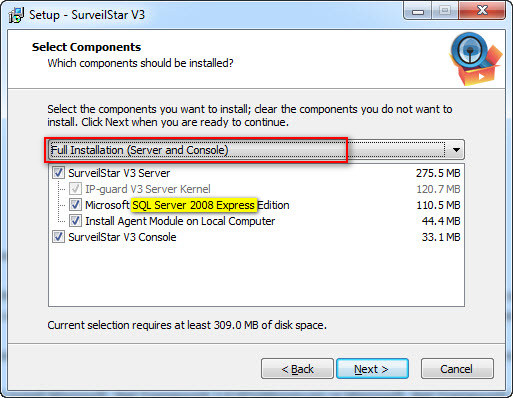
In the previous chapter, we have introduced installing console on server computer. Simply check the option "SurveilStar V3 Console".
Install SurveilStar Console on Other Computers
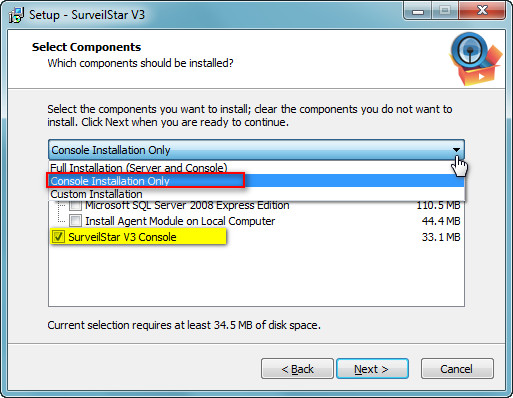
If you need to install SurveilStar Console on other computers, please choose "Console Installation Only" as shown below.

| Back to Index |
Installing SurveilStar Agent |