This document provides detailed guidelines on how to deploy SurveilStar PC/Internet monitoring software. Content on this topic is also available in both PDF and Doc documents, you can download either of the document for latter reference. Check Overview of SurveilStar employee monitoring system before getting started.
| How to deploy SurveilStar PC/Internet Monitoring Software (.pdf) | How to deploy SurveilStar PC/Internet Monitoring Software (.doc) |
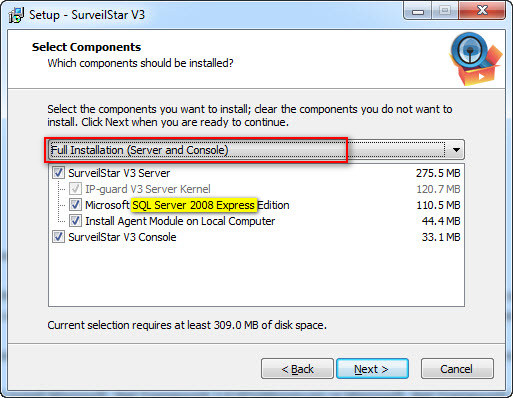
1 Install SQL Server, SurveilStar Server & Console to your PC.

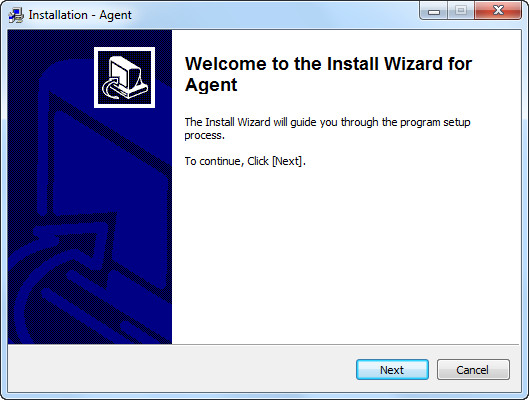
2 Install SurveilStar Agent to PCs you would like to monitor
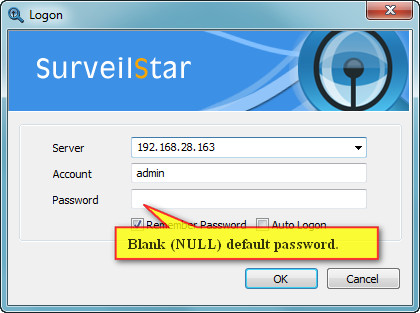
3 Log in SurveilStar Console and view all records
Please make sure to follow the steps below to deploy SurveilStar employee monitoring software.
SurveilStar monitoring system requires a SQL data server to store and feed the collected data. SurveilStar Version after 3.27 supports SQL Server 2008 Express Edition as the built-in database engine. Microsoft® SQL Server® 2008 R2 Express is a powerful and reliable data management system that delivers a rich set of features, data protection, and performance. The SQL Server can be deployed on a dedicated computer or any computer deemed appropriate to be used as a data server, according to the following requirements:
Before installing SQL Server, you may need to update Windows Installer, .Net Framework and Windows PowerShell.
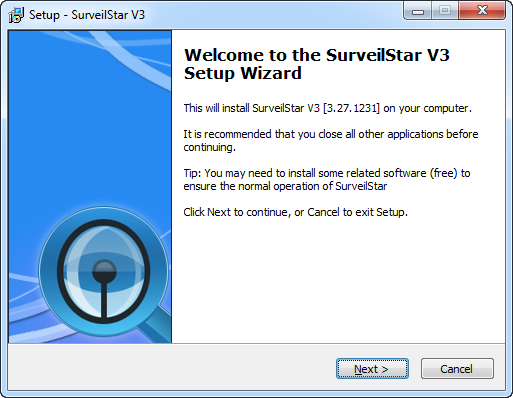
SurveilStar Server should be installed in the same computer with the SQL Server application. Double-click the surveilstar setup file. If it pops up security warning message, please click Yes or Run button to continue.
Choose which components should be installed.
1. If you have installed a previous version of SQL Server and don't need SQL Server 2008, please uncheck Microsoft SQL Server 2008 Express Edition.
2. If you don't need to monitor the current server computer, please uncheck Install Agent Module on Local Computer.
3. If you don't need Console in the server computer to view all surveilstar records, please uncheck SurveilStar V3 Console. Please note that SurveilStar Console can be installed on different computers.
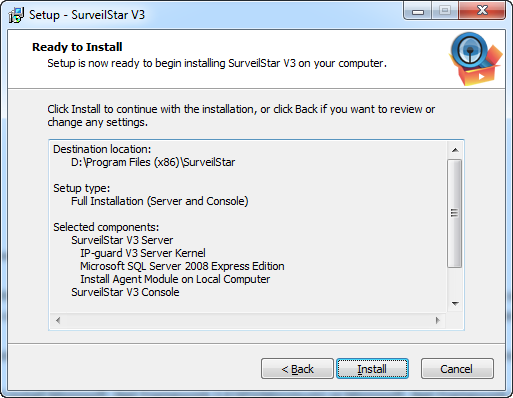
Check all the information and click Install to continue the installation, or click Back if you want to review or change any settings.
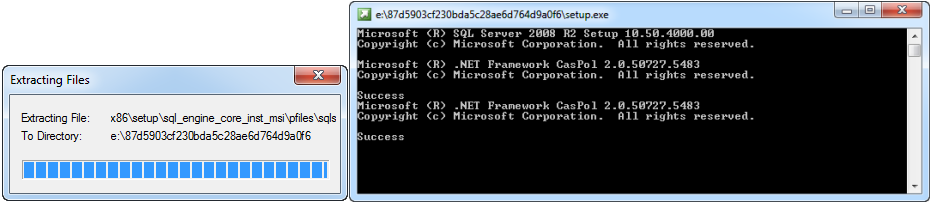
Installing SQL Server 2008 automatically. Please do not close the popup. It would take some time, please wait.
Please wait while SQL Server 2008 R2 Setup processes the current operation.
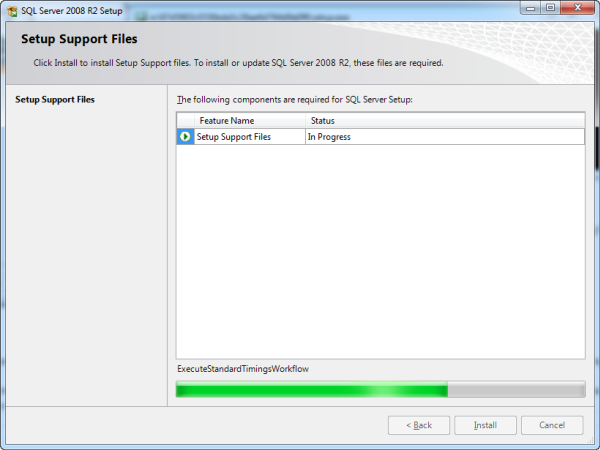
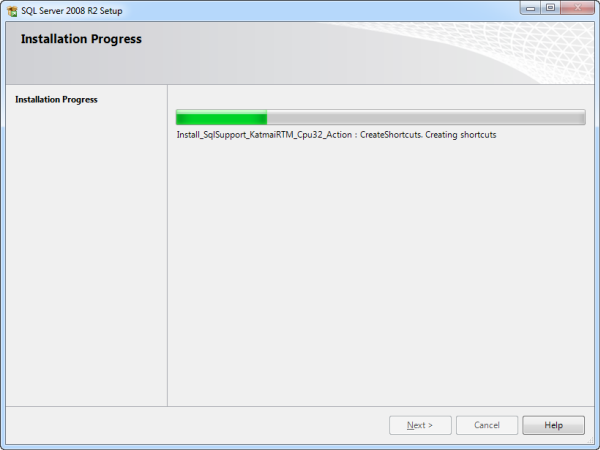
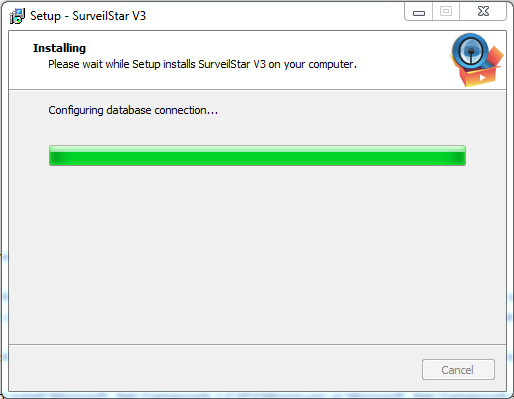
Installing SurveilStar on your computer. Please wait for the installation process to complete.
Complete the SQL Server 2008 & SurveilStar setup. Click Finish to exit setup.
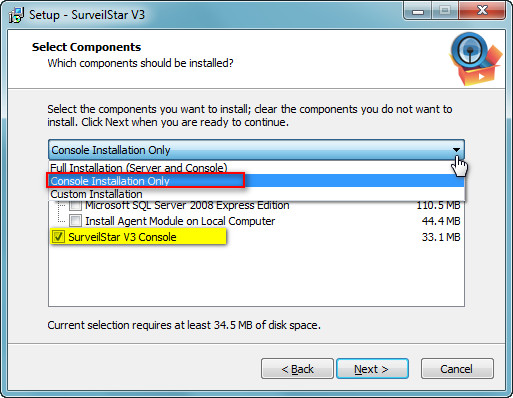
The installation of SurveilStar Console uses the same setup file as installing the SurveilStar Server. Double-click the surveilstar setup file. Select SurveilStar V3 Console when prompted to select components, and then proceed.
SurveilStar Agent should be deployed to computers that are required to be monitored and controlled. The Agent can install in silence mode and run in stealth mode.
There are 3 ways to deploy SurveilStar Agent to computers: Direct Installation, Remote Installation, and Logon Script Installation.
Adopting the Direct Installation method, you need to install the Agent one by one following these steps:
Step 1. Create SurveilStar Agent setup file
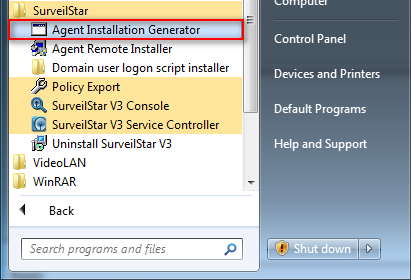
On the desktop of the server, click "Start > All Programs > SurveilStar > Agent Installation Generator"
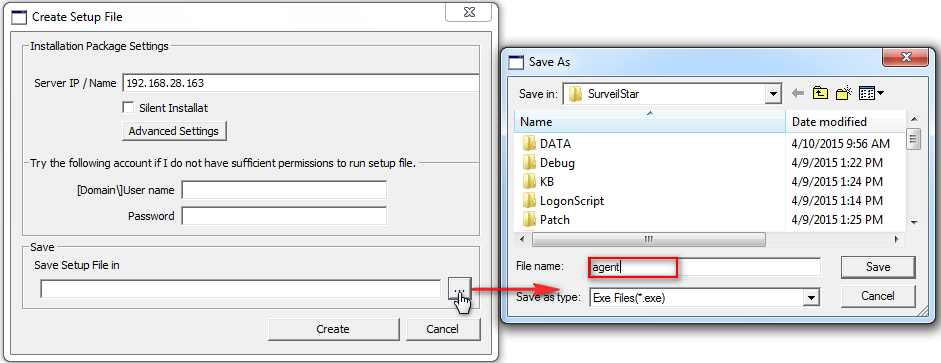
Agent Installation Package Settings.
1. Server IP/Name: IP address of the server. Static IP and Dynamic DNS are supported.
2. Silent Installation: If you check this option, the Agent will install without showing any visible interface on agent computers.
3. Account info: Installing SurveilStar Agent requires administrator privilege. Then you can try the account to run the setup file.
4. Save Setup File in: Choose a folder to save the setup file, and give it a file name.
Step 2. Copy the setup file to target computers.

Step 3. Double-click the setup file to install SurveilStar Agent.
Remote Installation can easily deploy SurveilStar Agent to a massive number of computers in remote and batch mode. Details ...
If the local area network (LAN) of your company has a domain server, you can use this method to deploy the Agent to computers within the LAN. Details ...
Click Start > All Programs > SurveilStar > SurveilStar V3 Console to launch SurveilStar console logon dialog. Log in Console to view all records from agent computers.
1. Server: Enter SurveilStar Server's IP address or computer name.
2. Account: The default administrator account is "admin".
3. Password: Installing SurveilStar Agent requires administrator privilege. Then you can try the account to run the setup file.
A Control Policy describes when a PC/Internet activity is detected, what kind of action should be automatically taken against that activity. Control policy can be applied to the whole network, a certain group, or a selected computer/user.
High priority < -------------------------------------------------- > Low priority
Click the Basic Policy or Advanced Policy tab in SurveilStar Console, and then click on a sub-tab to create new policy.


 Add a new policy
 Move up
 Move down
 Delete policy
  Reset policy
 Save policy
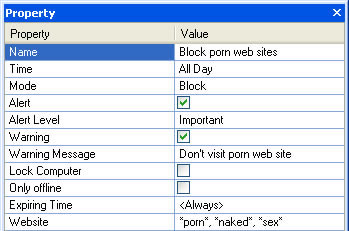
For instance, you can create a website policy to filter websites with porn content:
Note: If you want to remove the entire SurveilStar PC/Internet monitoring system, including Agents, Consoles and Server, please delete all SurveilStar Agents first. Otherwise, the deployed SurveilStar Agents will continue to run in those computers, even though the SurveilStar Server is removed. Uninstall Agent, Uninstall Console, Uninstall Server.
Only IT manager or senior supervisor with administrator access to SurveilStar Console can uninstall SurveilStar Agent.
There are two methods to uninstall SurveilStar monitoring Agent:
Login to the SurveilStar Console, right-click on any selected computer, or the entire network, and choose Uninstall Agent from the pop-up menu (as shown bellow).
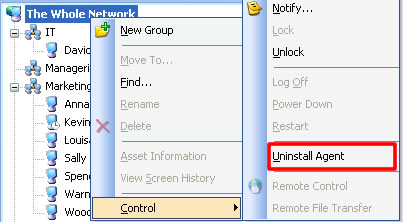
Note: Uninstalling an Agent does not delete the history data of this computer. The uninstalled Agent will still appear in the Console, marked in dark gray color. To delete an Agent completely, please click the Console menu "Tools > Computers" , select the computer name, and then click the Delete button.
If the client computer is offline or is out of control of SurveilStar Console, you can uninstall the Agent directly from the computer. Read detailed instructions on this topic.
On the desktop of Windows system, click " Start > All Programs > SurveilStar > Uninstall SurveilStar" , or go to "Control Panel > Add/Remove Program" to uninstall SurveilStar Server.
Note:> Before uninstalling SurveilStar Server, all SurveilStar Consoles should be closed first.
On the desktop of Windows system, click " Start > All Programs > SurveilStar > Uninstall SurveilStar" , or go to "Control Panel > Add/Remove Program" to uninstall SurveilStar Server.